Processes
Overview
TODO: talk about processes
Types of Processes
Generic Processes
TODO: talk about generic processes and for what they are good for
Application Processes
Detailed Documentation on Application Processes
Application processes, like component processes, are created with the process editor. You use application processes to deploy or to roll back components, define the orchestration of the deployment of components. Means if there are dependencies between components deploy them sequentially, if no dependency exists do it in parallel.
View Application Processes
| Step | Details | Additional Information |
|---|---|---|
| Switch to Applications View | ||
| Open EchoLogic App | ||
| Switch to Processes View | ||
| Available application processes are shown |  | |
Component Processes
TODO: talk about component processes and what is it good for
View Component Processes
A freshly created component does not have any processes:
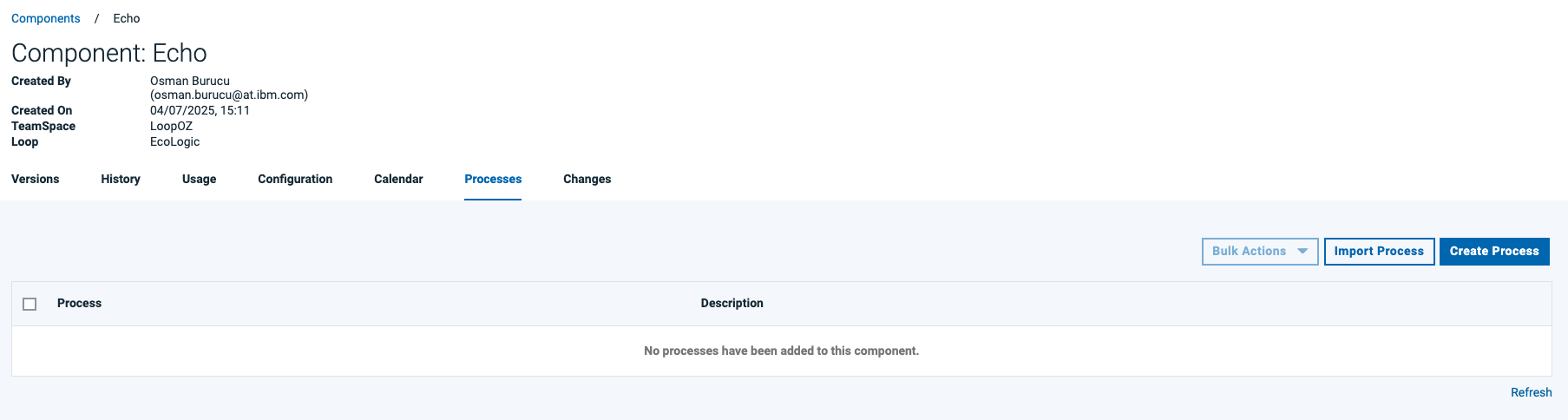
Every Component needs at least one (1) process. To create one press the Create Process Button 
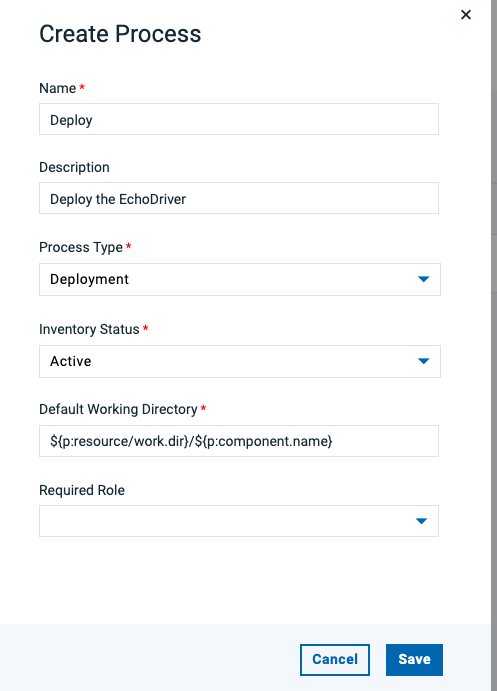
TODO: talk about process details
Process Designer
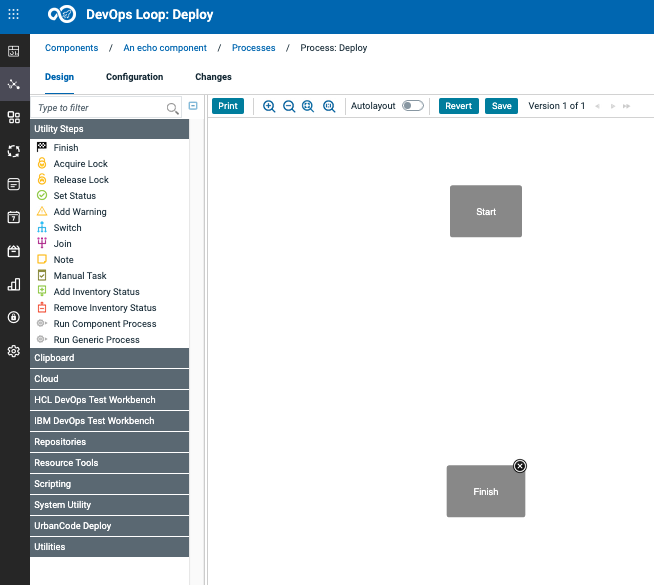
It will show you the process designer for a new process:
Process Designer Sidebar
TODO: talk about sidebar
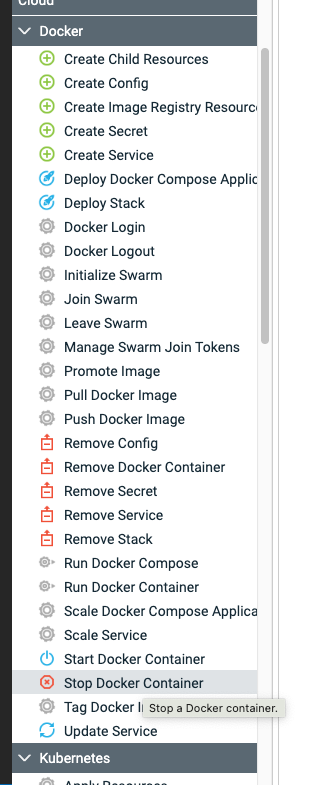
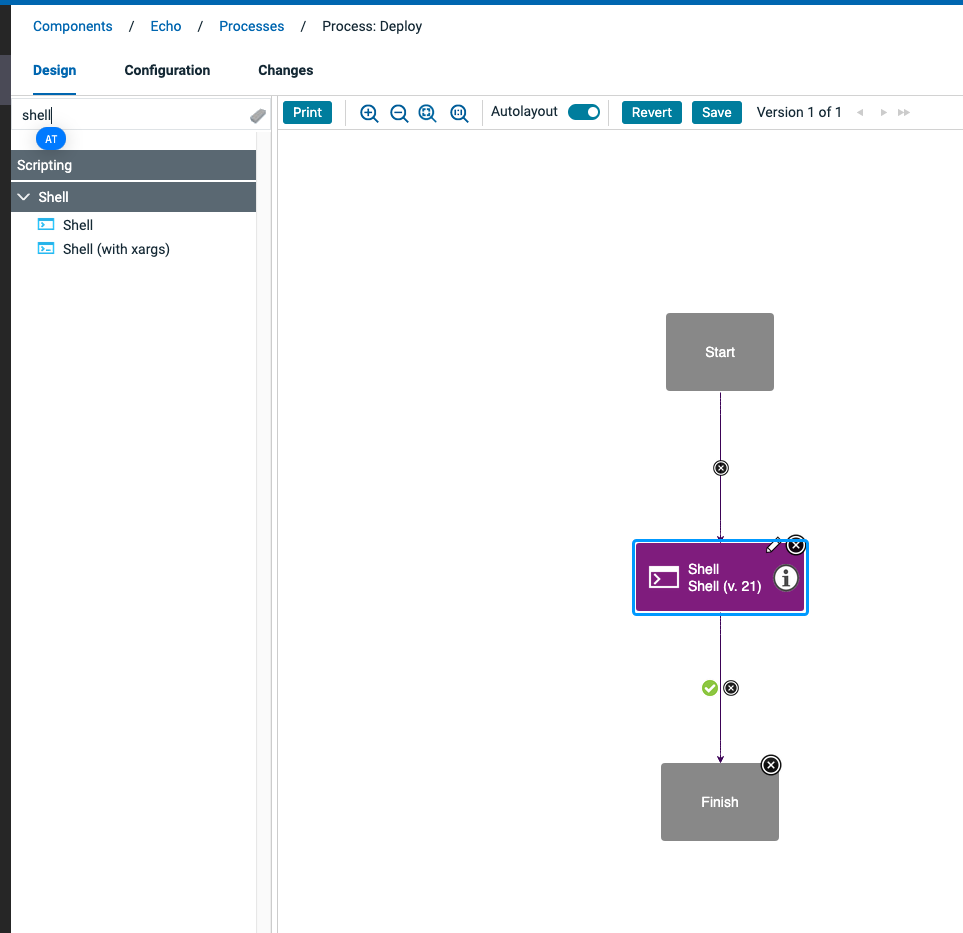
Drag Drop a step onto the canvas.
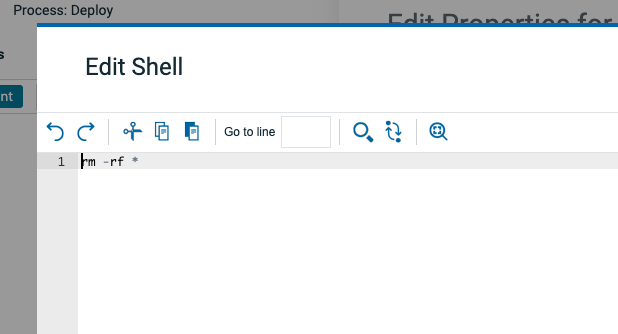
Configure the step:
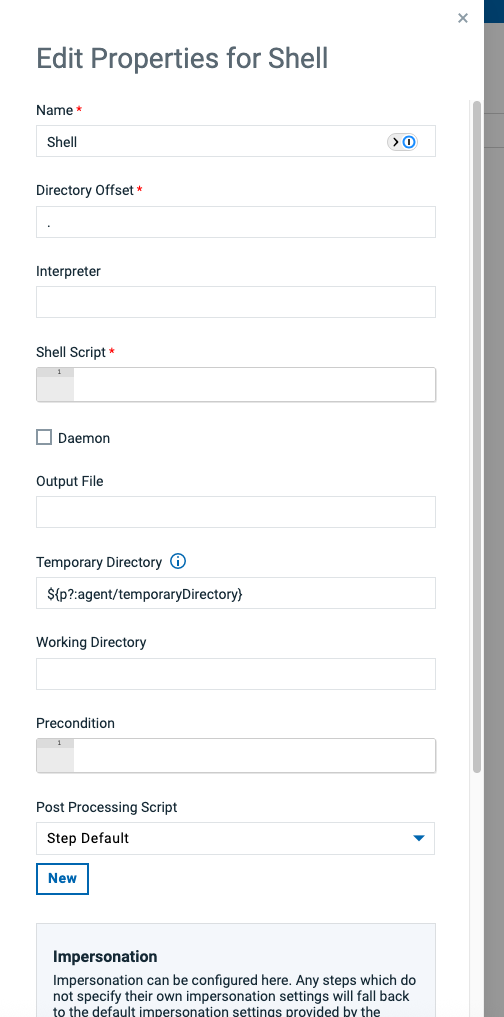
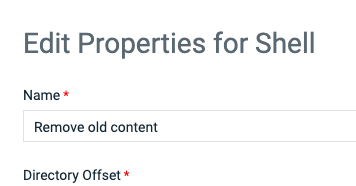
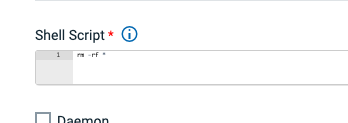
In this example the shell step requires to have some script/commands added into the shell script field:
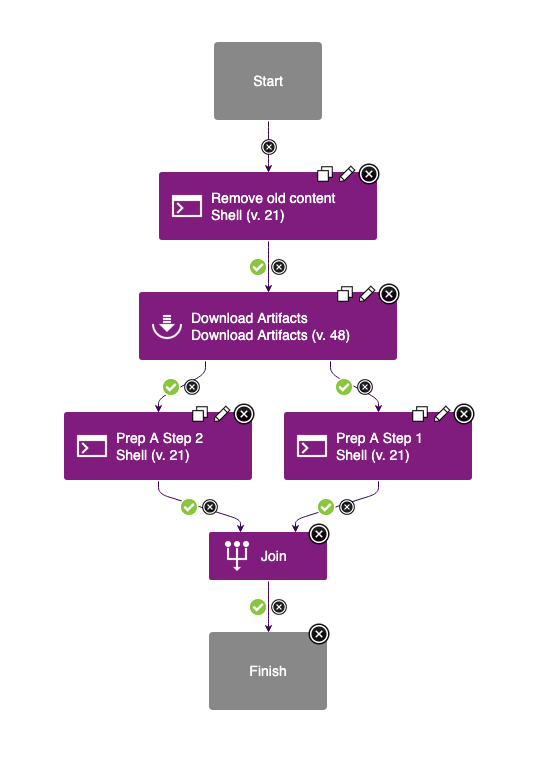
Final Process Diagram
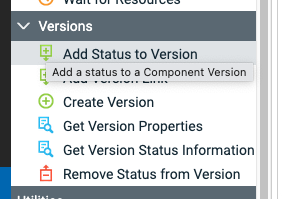
Adding Version Statuses
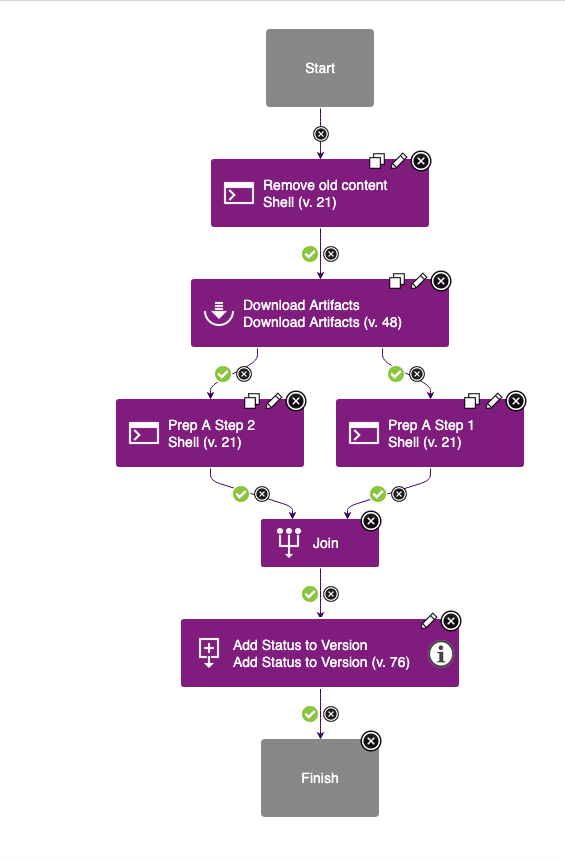
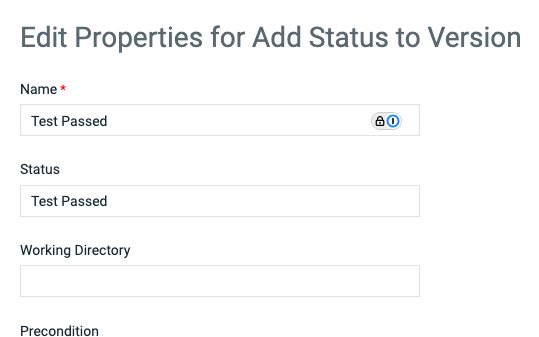
Final Process Diagrams (Passing and Failing tests)
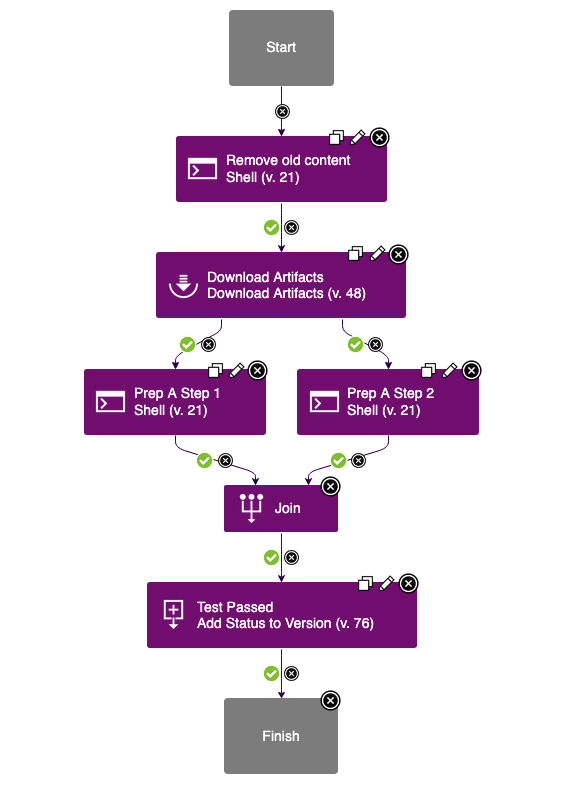
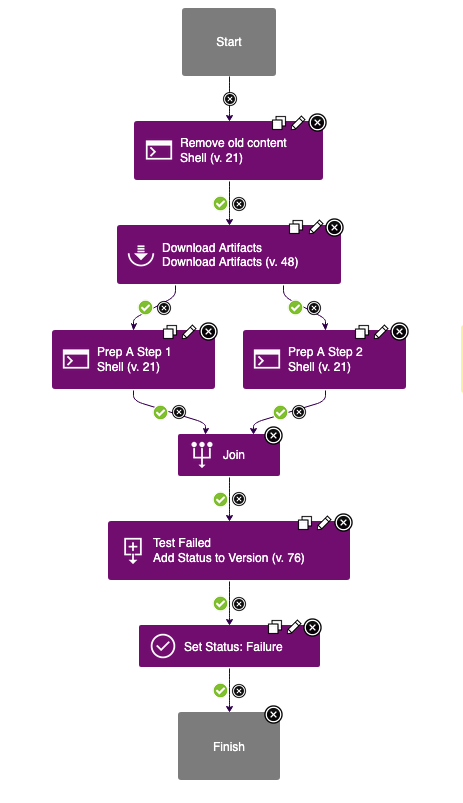
Now we have additional deployment processes. One for passing a test and one for failing a test. Both processes will set the appropiate version tag about status of test.
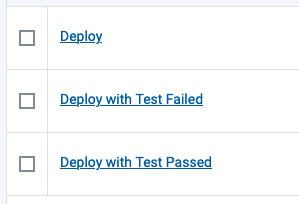
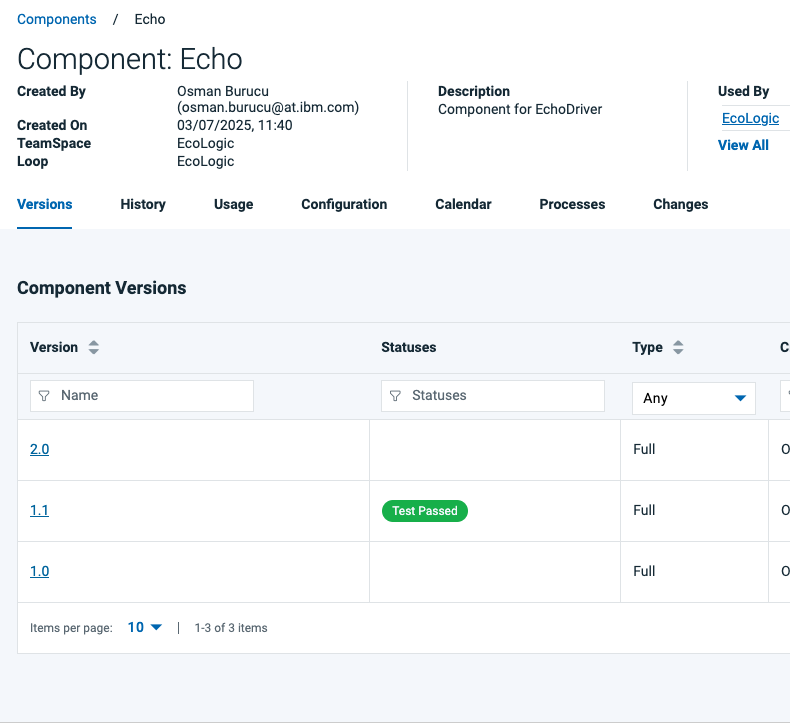
Result in the Versionlist of the component: