Setting Up and other Configurations
All about setting up for DevOps Plan and configure parts.
Create new Application
If you need a new app follow the instructions for creating a new Application.
Importing Sample Data
How to import existing data (CSV file) into an application.
Import Data
| Step | Details | Additional Information |
|---|---|---|
| 1 | Use the Import Feature of plan to load sample data | 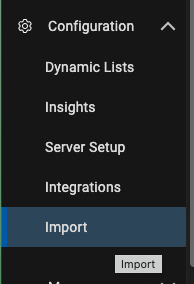 |
| 2 | NOTE Downloade the Demo Data File onto your local drive | |
| 2.1 Click oon EchoLogic Zip File from files section | ||
| 2.2 and save the file on your local drive (best into Downloads) | 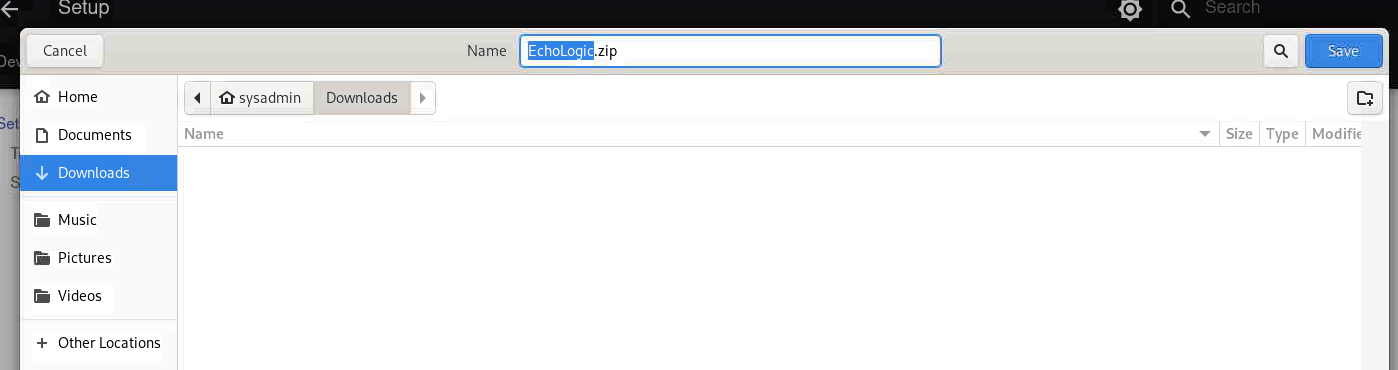 | |
| 3 | In the Dialog for importing record data | 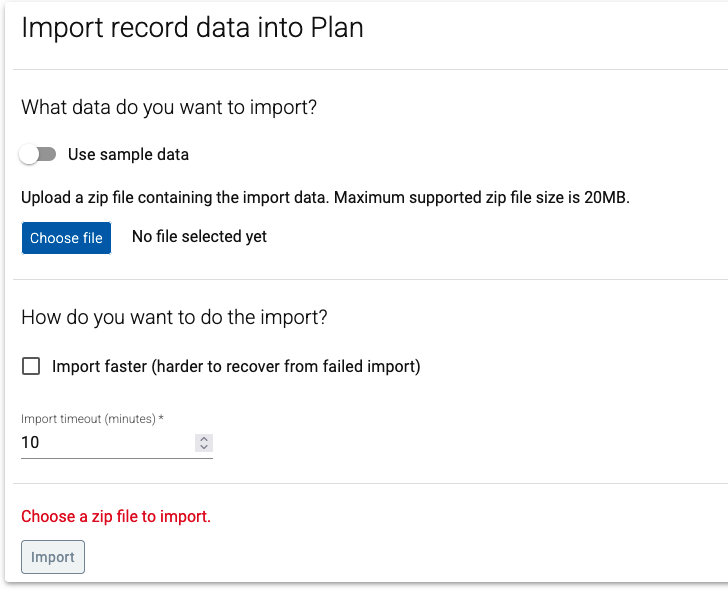 |
| 3.1 click the Choose File Button |  | |
| 3.2 select the sample data file (from Step 2) to be imported | 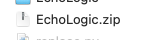 | |
| 4 | Now we have the file selected | 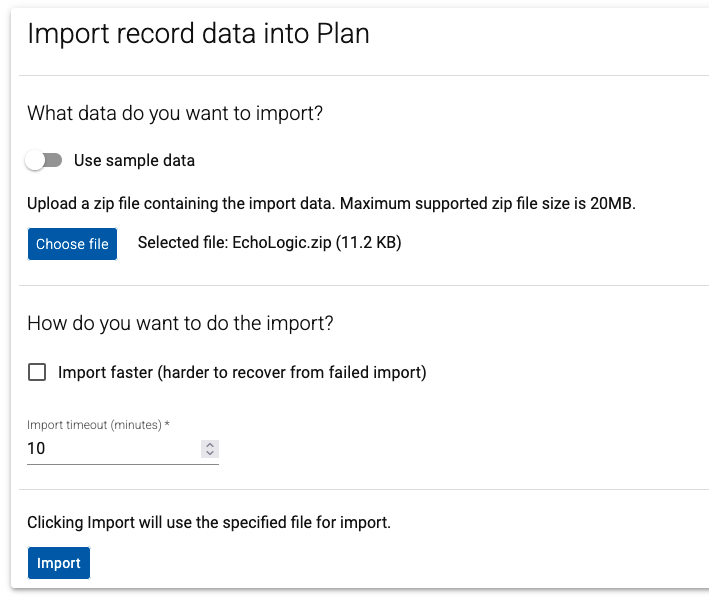 |
| 5 | Presss the Import Button to start |  |
| 6 | The Import process starts. | 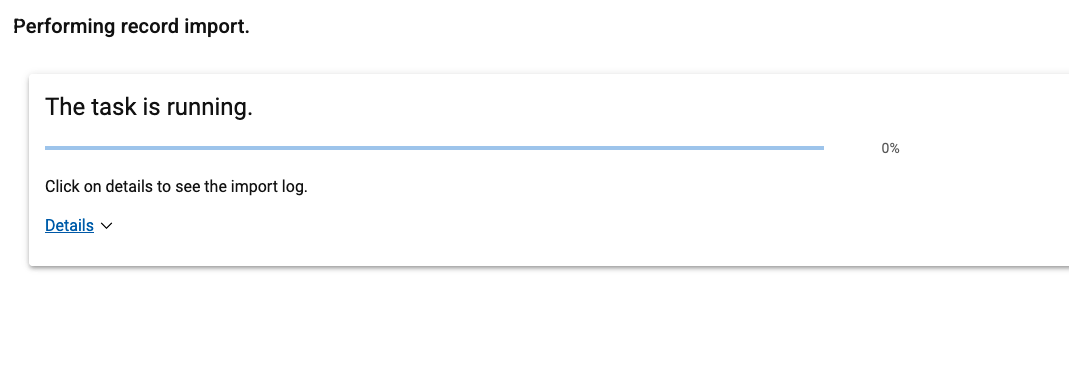 |
| 7 | By clicking on Details the process output can be viewed | 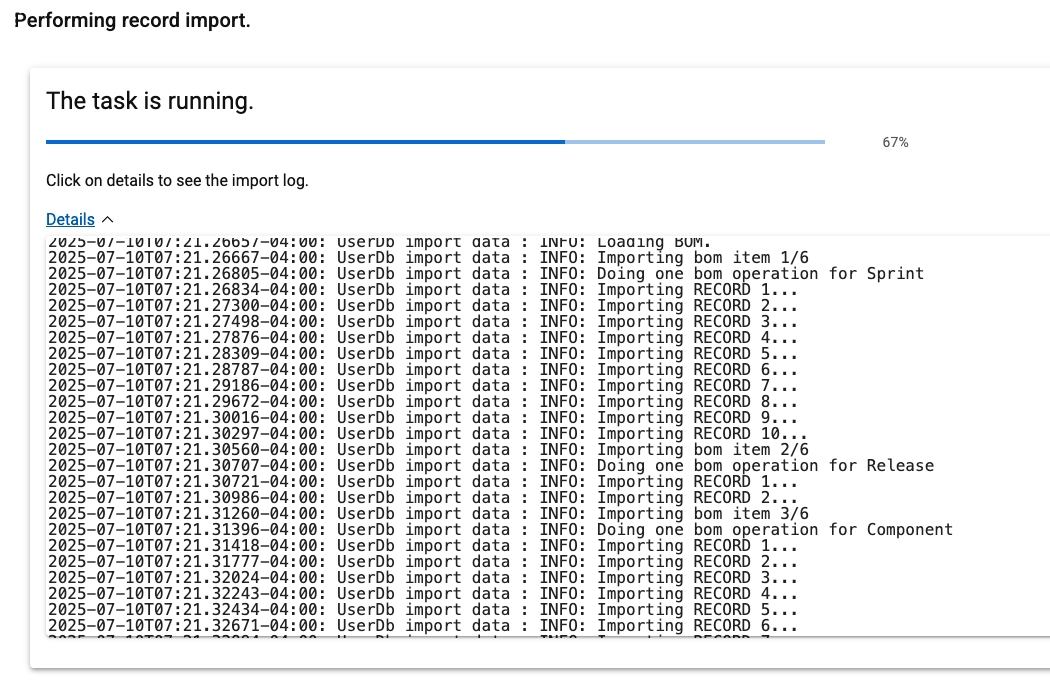 |
| 8 | Import has finished | 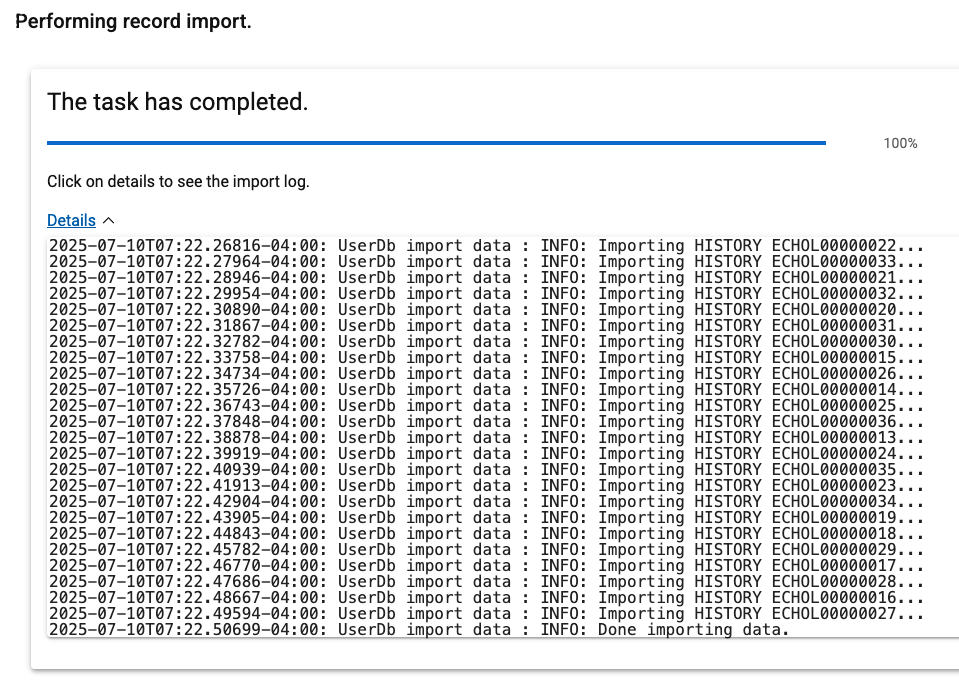 |
| 9 | Press the close button (bottom right on the screen) |  |
Configuring
Personal Access Token
| Step | Details | Additional Information |
|---|---|---|
| Click on your Profile Icon in the Sidebar and select Personal Access Token | 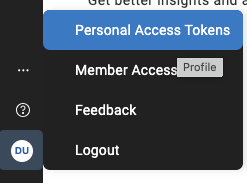 | |
| A list of existing Personal Access Tokens (PAT) is shown | 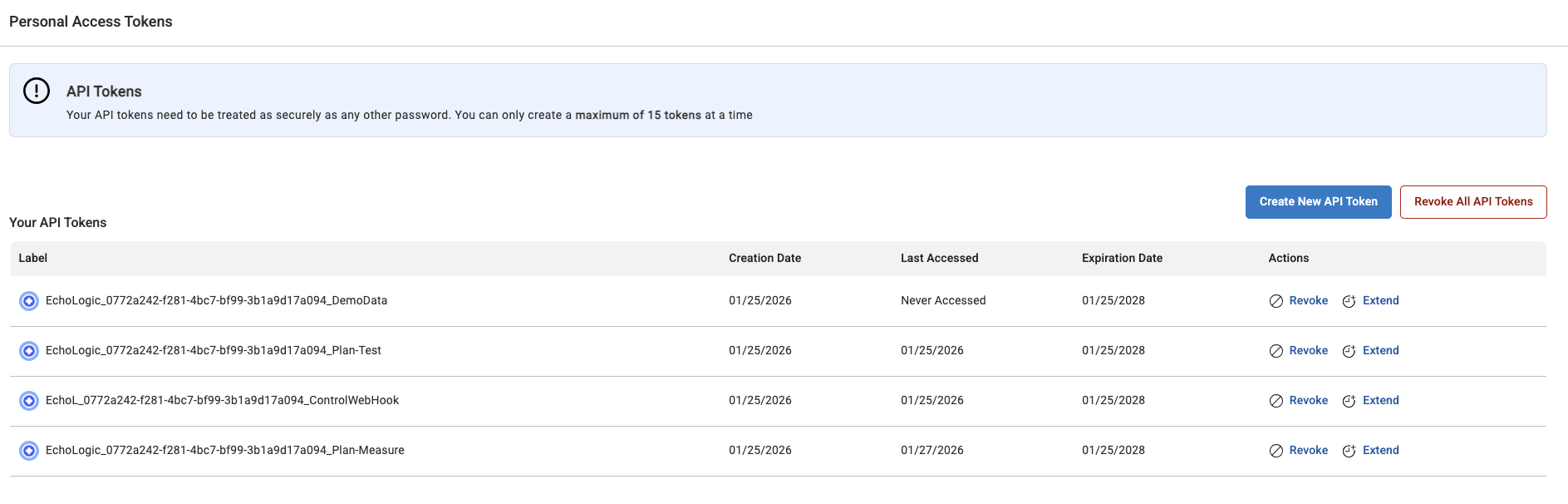 | |
| Click on Create New API Token |  | |
| a dialog is shown, please provide a name and a validity time | 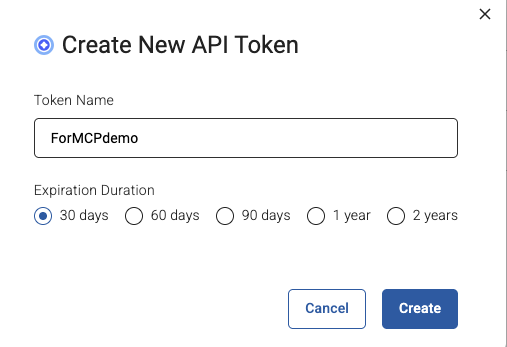 | |
PAT is created, press the Copy button  to copy into Clipboard to copy into Clipboard | 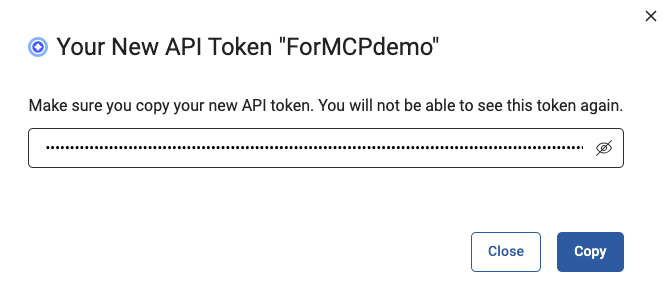 | |
| PAT is copied, paste it into a secure storage for furter use | 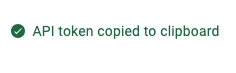 | |
| Close the dialog and updated list is shown | 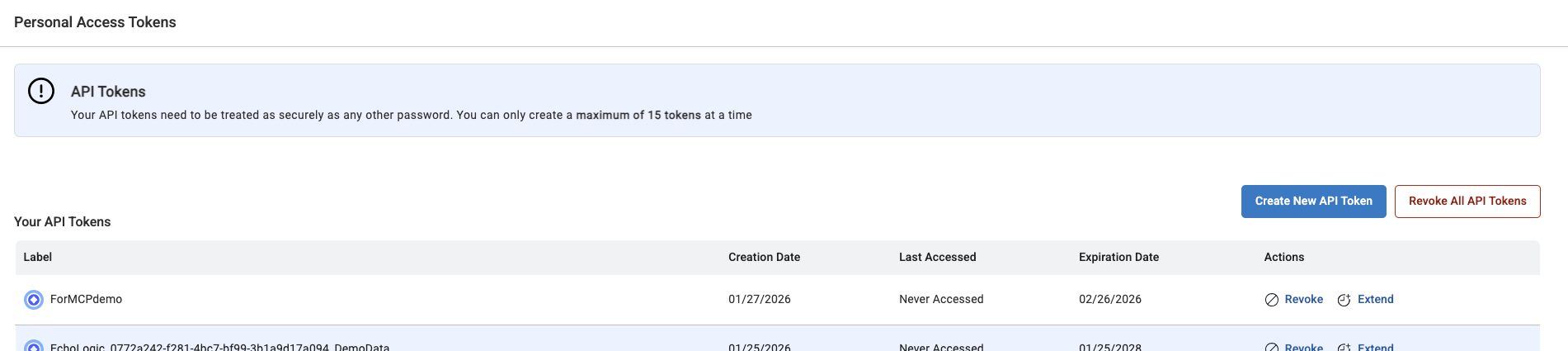 |
Get the DB ID
This value is needed in the MCP setup.
| Step | Details | Additional Information |
|---|---|---|
| Please use the "Home" button on the left sidebar to switch to the Home page for Plan |  | |
| On the right side click on My Applications |  | |
Click on Tenant Management  to open a the Tenant View to open a the Tenant View | 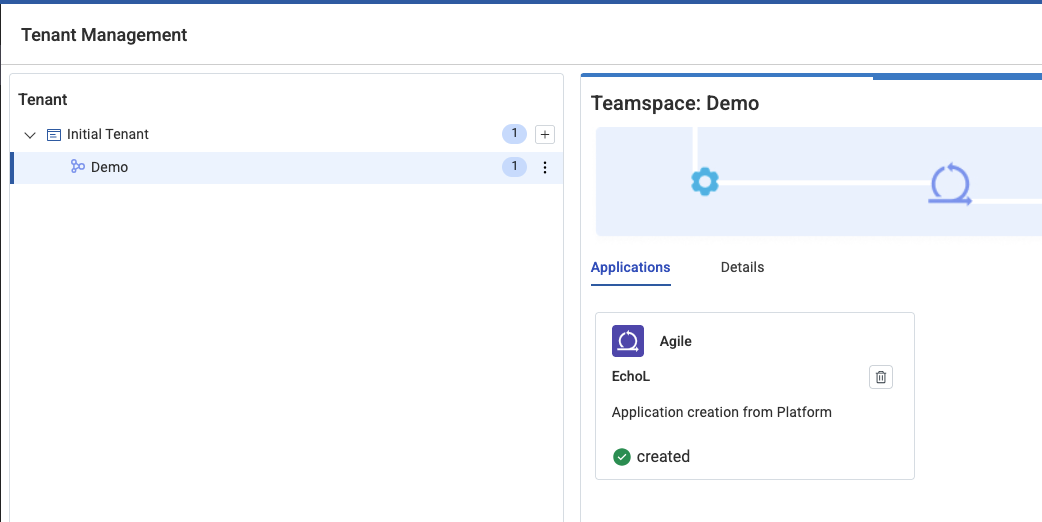 | |
| In this view select your Tenant (in this example Demo) | ||
| select the Details view tab and switch it on | 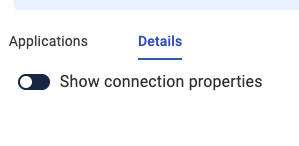 | |
| more information is shown about the tenant | 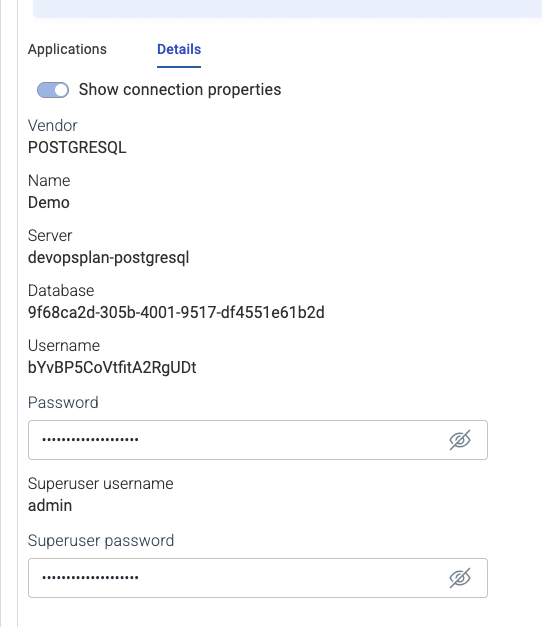 | |
| The Database ID is shown, and copy it for further usage |  |