AI Integrations
AI integrations can be setup only with administrative rights.
| Step | Details | Additional Information |
| Switch to the main view of your Teamspace by clicking on DevOps Loop: Loop in the Central App Menu | 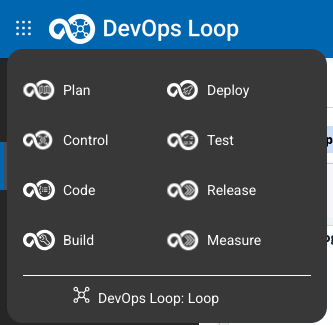 |
View or Create an Integration to an AI Provider
Please have a look at the documentation for more details.
| Step | Details | Additional Information |
| 1 | Click on Integrations in the Settings menue to get the list of all integrations or create new one | 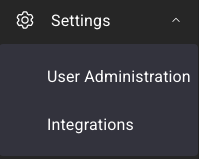 |
| 2 | A list of integrations is shown if available. | 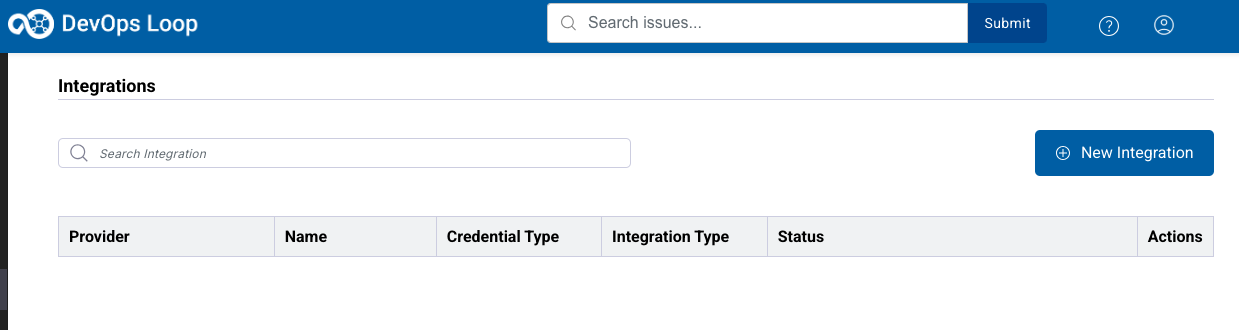 |
| 3 | To create a new integration click the Button New Integration |  |
| 4 | A Dialog for the integration appears | 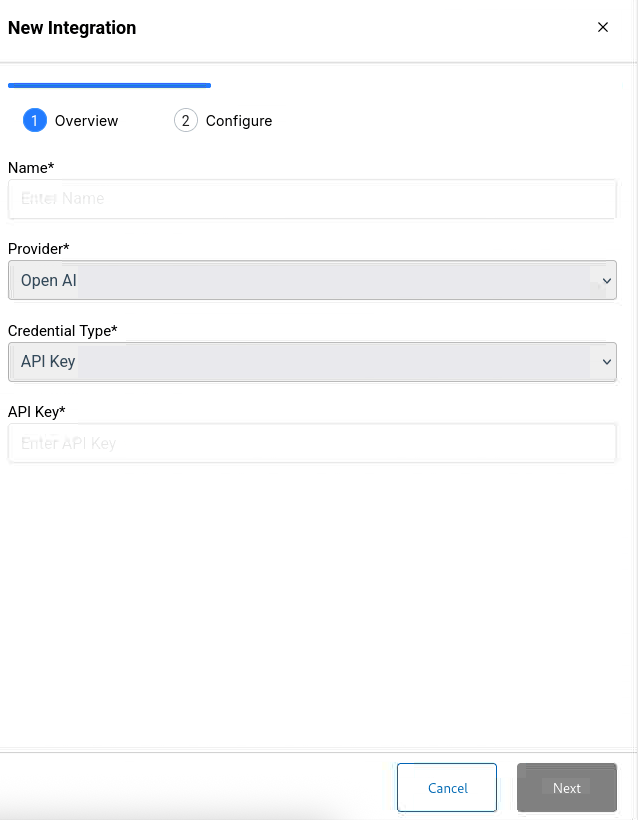 |
| 4.1 | Enter a meaningful Name | 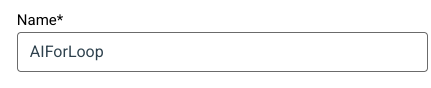 |
| 4.2 | Select the AI Provider (for example OpenAI) | 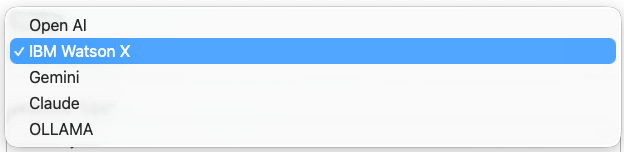 |
| 4.3 | Enter your API Key and press Next |  |
| 5 | Next page of dialog is shown | 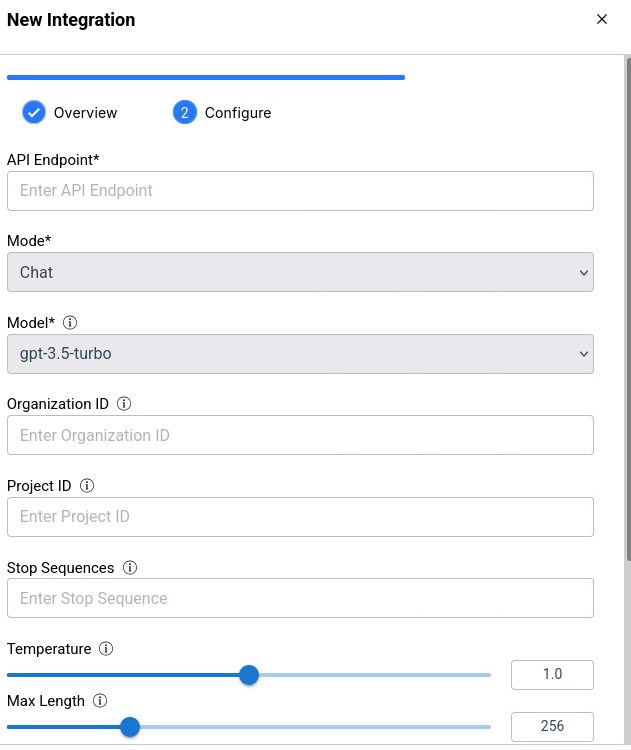 |
| 5.1 | Enter the API endpoint (for example for OpenAI) | https://api.openai.com/v1 |
| 5.2 | Select your prefered model and further configurations (for example from OpenAI models) | 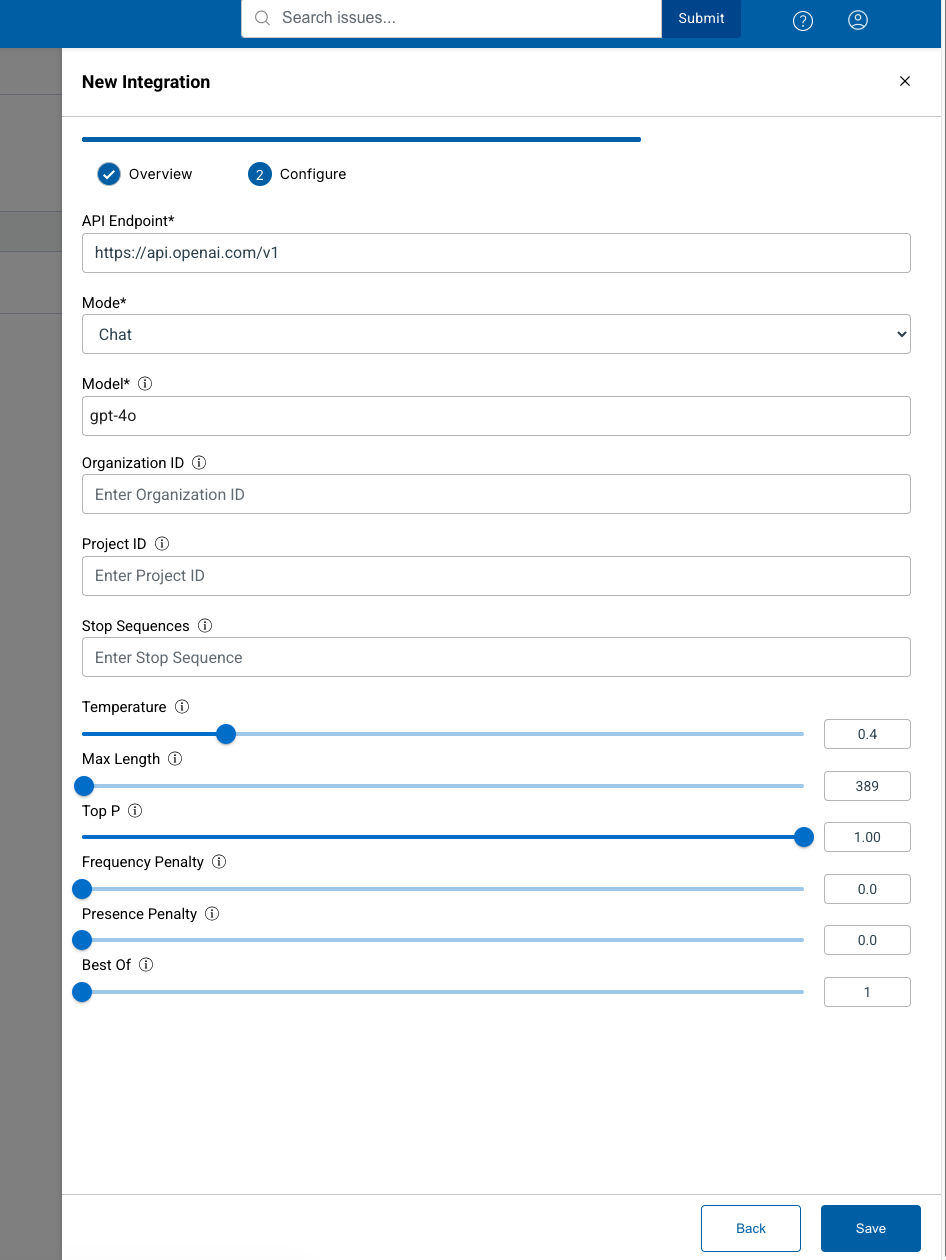 |
| 5.3 | click on Save |  |
| 6 | The newly created AI integration is shown | 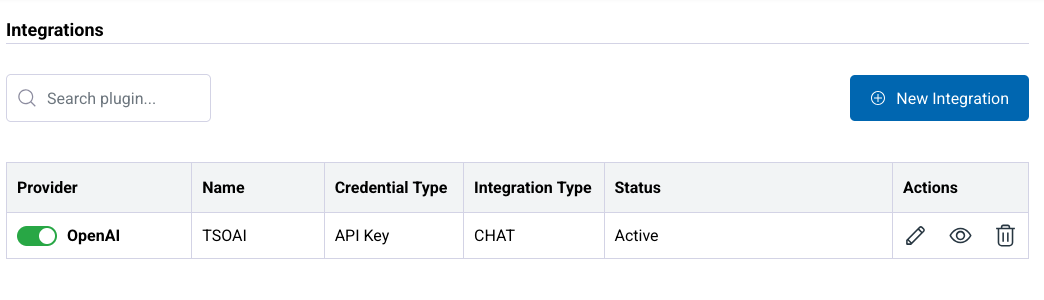 |
Switch to DevOps Plan
| Step | Details | Additional Information |
| 1 | You can always switch using the central app switcher on the top left of your screen | |
| 2 | Or You can switch directly to Plan by using the button/link from What would you like to do today section | 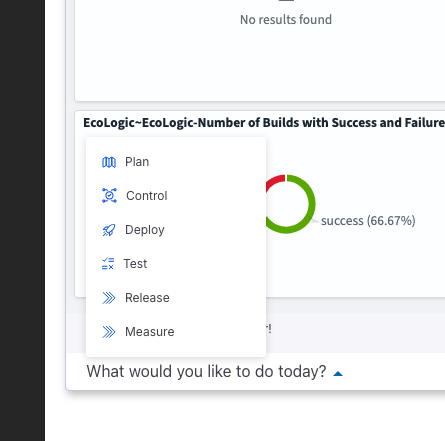 |
Adding an AI User Group
For easier management of AI access we need to create a Usergroup and add the eligible members to it.
| Step | Details | Additional Information |
| Click on User Management in the 3 Dots menue in the sidebar | 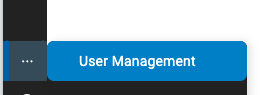 |
| Click on the Groups tab in the User Management View | 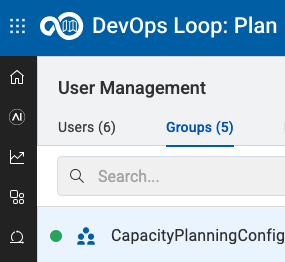 |
| Click on Create Group Button to create a new Group |  |
| Enter a meaningful name for new Group | 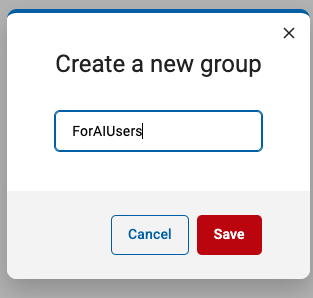 |
| Click on the Add User section | 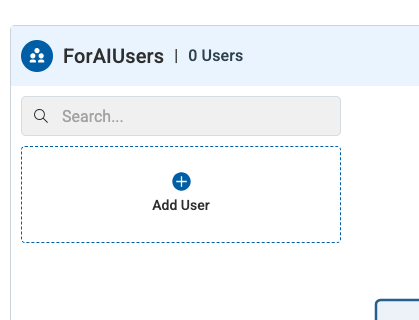 |
| Select the users by clicking on the  symbol symbol | 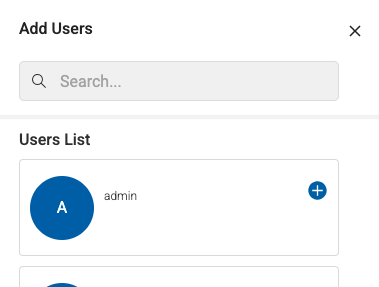 |
| Click the Add Button to add selected Users to Group |  |
| All Groupmemebers are now listed in Group | 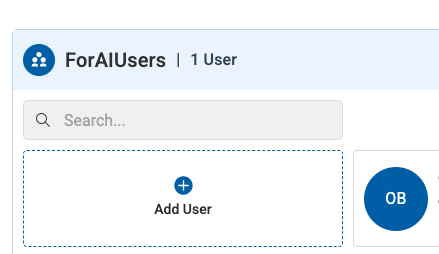 |
Then create the AI integration and associate the group.
| Step | Details | Additional Information |
| Click on Integrations in the Configuration menue in the sidebar | 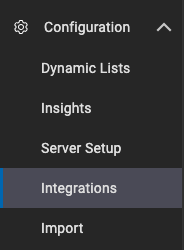 |
| The empty integrations view is shown | 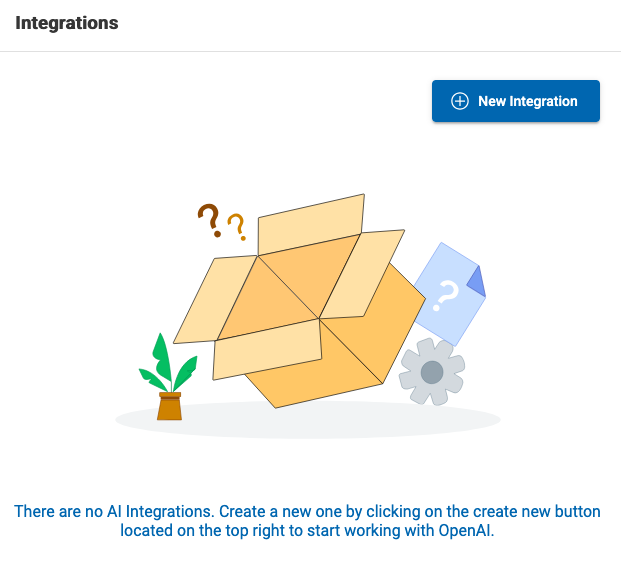 |
| Click on New Integration Button |  |
| Enter a meaningful name and select your AI Provider and API Key | 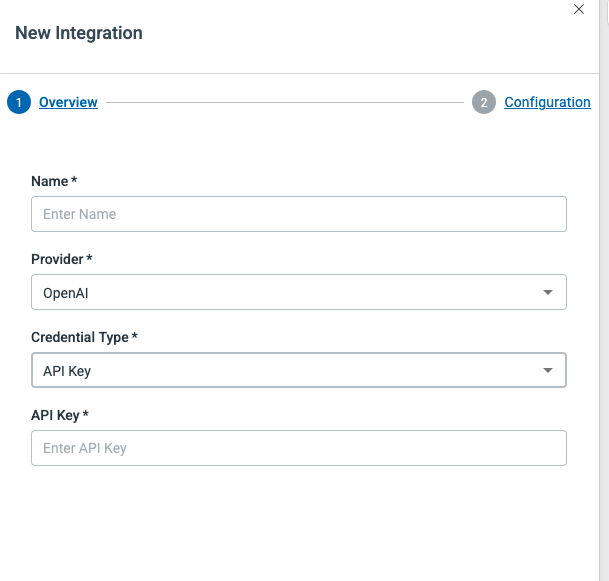 |
| Press Next Button to enter more Details |  |
| Next dialog page opens | 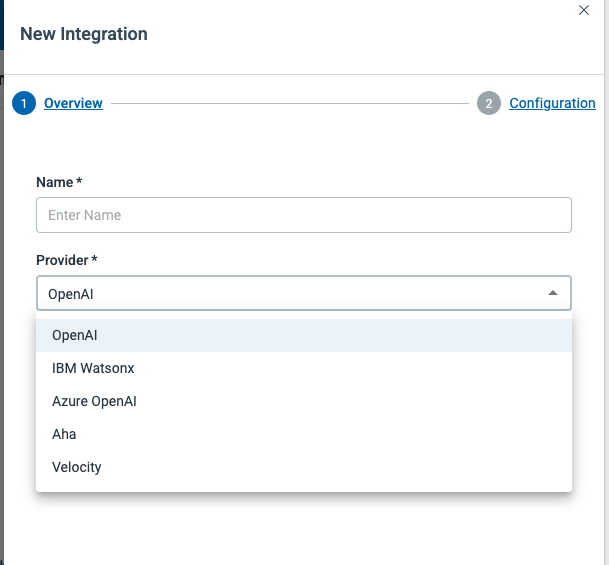 |
| Enter API Endpoint if missing | https://api.openai.com/v1/chat/completions |
| Select your prefered model | 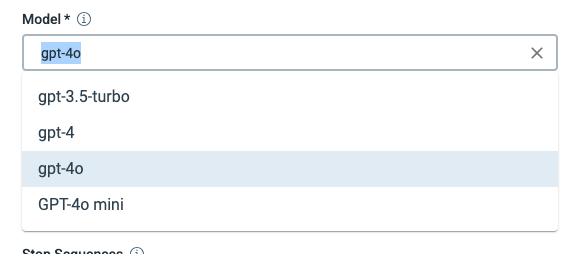 |
| Set your prefered LLM settings for temperature and more | 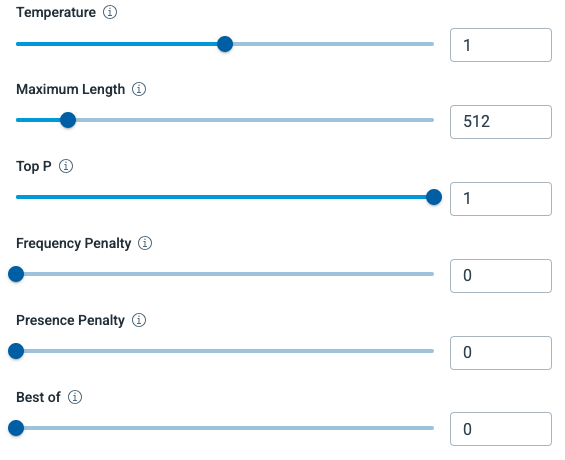 |
| Click on Save | |
| The new AI integration is created but no Groups are associated | 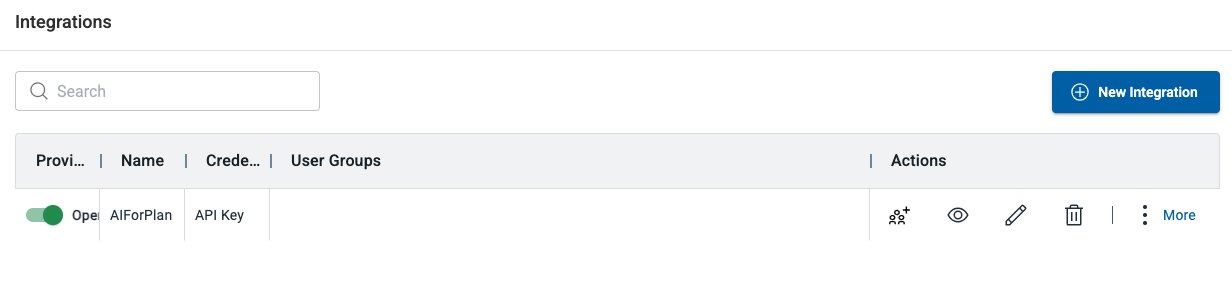 |
| Press the Add Groups Button under Actions Column |  |
| Select the new Group you created from above and additional ones you need | 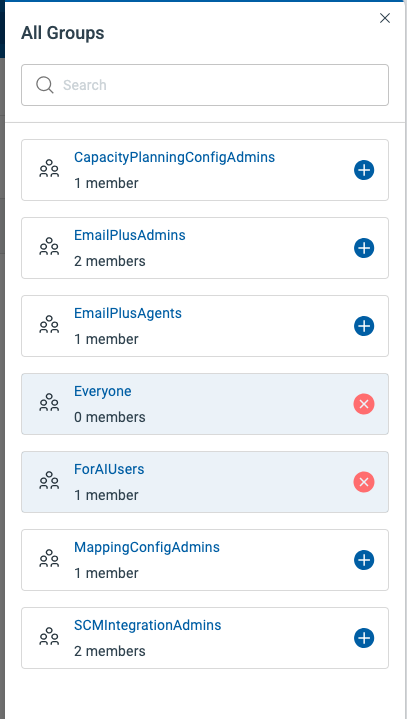 |
| Click on ADD Button to save selection |  |
| Updated View | 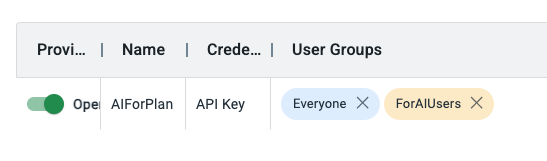 |
Activate Member Access
Last step is for every enabled user (from selected groups) is to activate the access
| Step | Details | Additional Information |
| Click on your Profile Icon in the Sidebar and select Member Access | 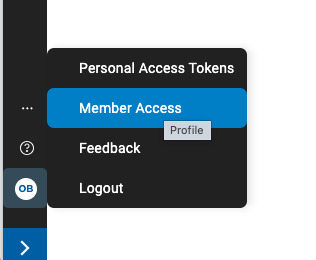 |
| A list of integrations available for Member access is shown and their status | 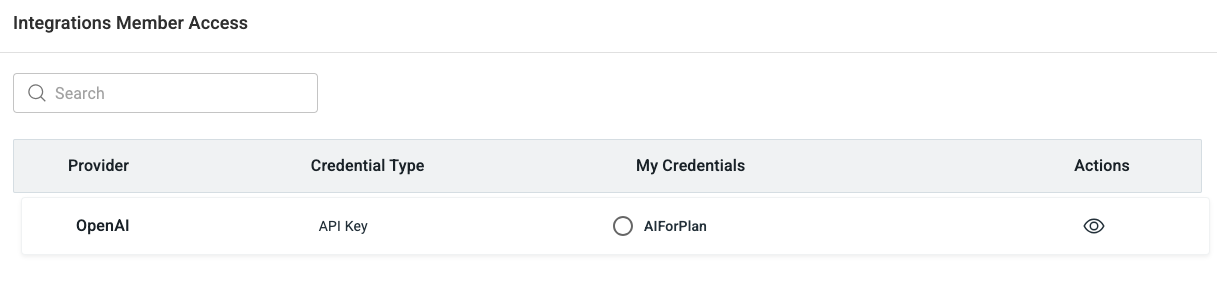 |
| Click on the Integrationname to activate access | 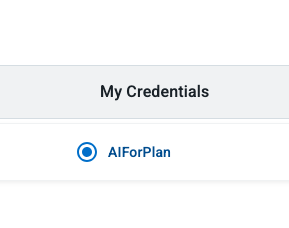 |
Switch to Deploy Settings
| Step | Details | Additional Information |
| 1 | Switch to Deploy Home Page | |
| 2 | On the Deploy Home page switch to Settings by using the Settings Icon |  |
| Step | Details | Additional Information |
| Scroll down in the System Section to view all sub sections |  |
| Click on the AI Settings icon |  |
| The AI Integration configuration Dialog opens | 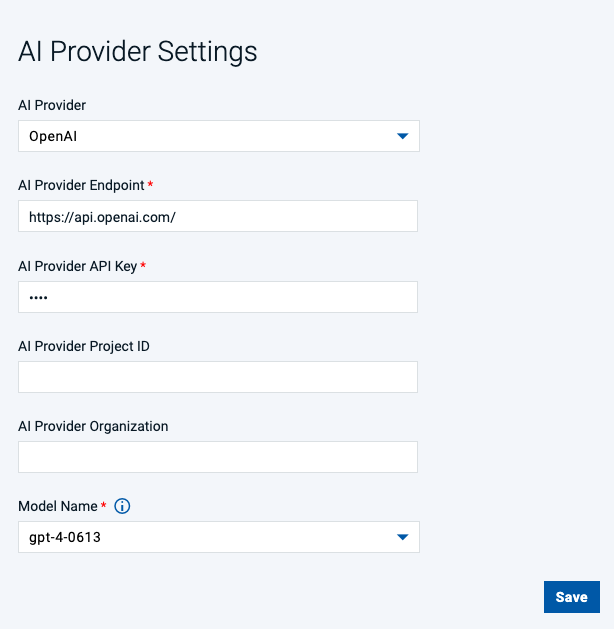 |
| In the AI Provider listbox select OpenAI | 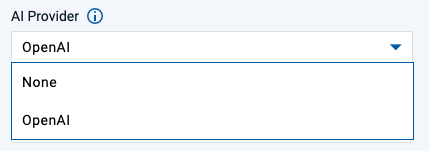 |
| If AI Provider Endpoint is empty enter this URL | https://api.openai.com/ |
| Enter your API Key in the AI Provider API Key field | |
| Click on the Model Name Listbox to view all available Models |  |
| Select your prefered moddel from list | 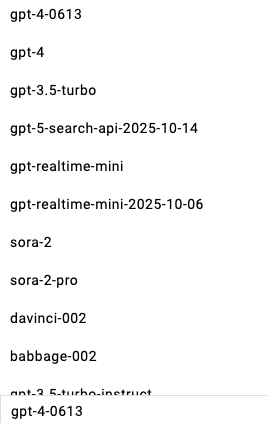 |
| Selected Model will be shown |  |
| Click on Save to finish setup | |