Test
Introduction
TODO: Update with latest "Learning Loops" data. New Screenshots and slightly different flow
DevOps Test is a web-based continuous testing platform that consolidates test data, environments, test runs, and reports. It supports API, functional, and performance tests.
To learn more about DevOps Test please have a look at the documentation
Overview
This lab will provide you with a practical hands-on of our testing capabilities. You can click on the main menu and navigate to the DevOps Test.
How to switch to Test from Home Page
| Step | Details | Additional Information |
|---|---|---|
| 1 | You can always switch using the central app switcher on the top left of your screen | 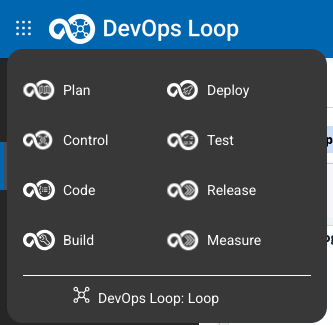 |
| 2 | Or You can switch directly to Test by using the button/link from What would you like to do today section | 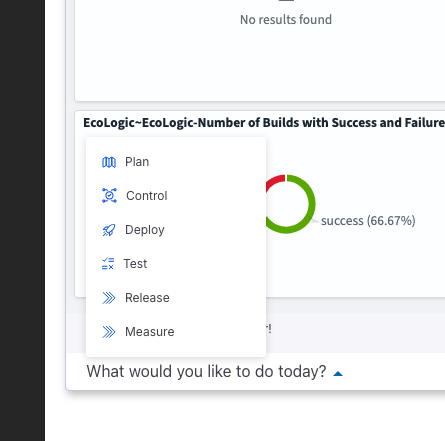 |
3rd Party
| Step | Details | Additional Information |
|---|---|---|
| The first time you use Test you are asked if you want to accept 3rd Party plugins | 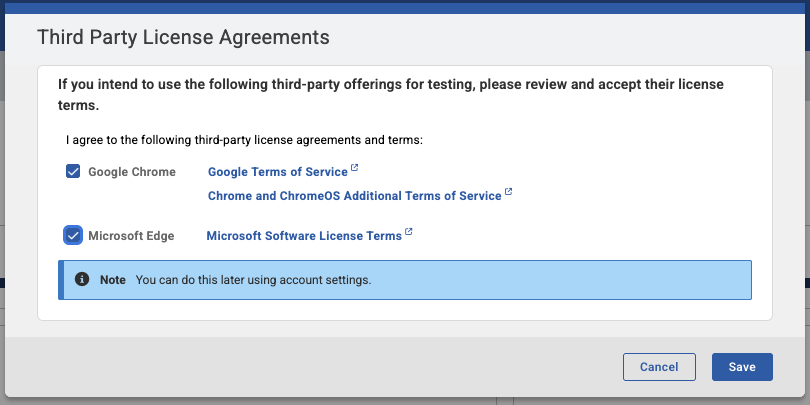 | |
| Either check the plugins to have them arccepte or accept them later. Press Save and a success mesage is shown | 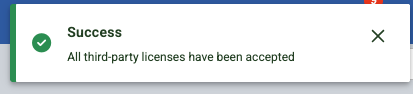 |
Switch teamspace and Project if needed
Should Test show you a different Teamspace or Project then expected (Demo and EchoLogic), click on Teamspace Icon
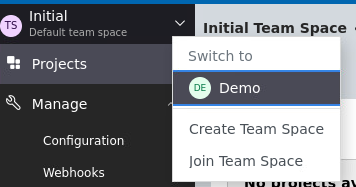
and Select Demo. A list of Projects is shown:
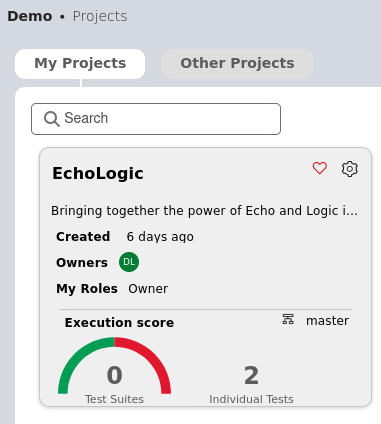
TestScripts and Testruns
| Step | Details | Additional Information |
|---|---|---|
| Explain that you are now playing the role of a tester | ||
| click on EchoLogic Project to open landing page | 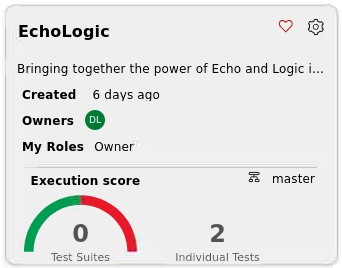 | |
| Show the test landing page and metrics | 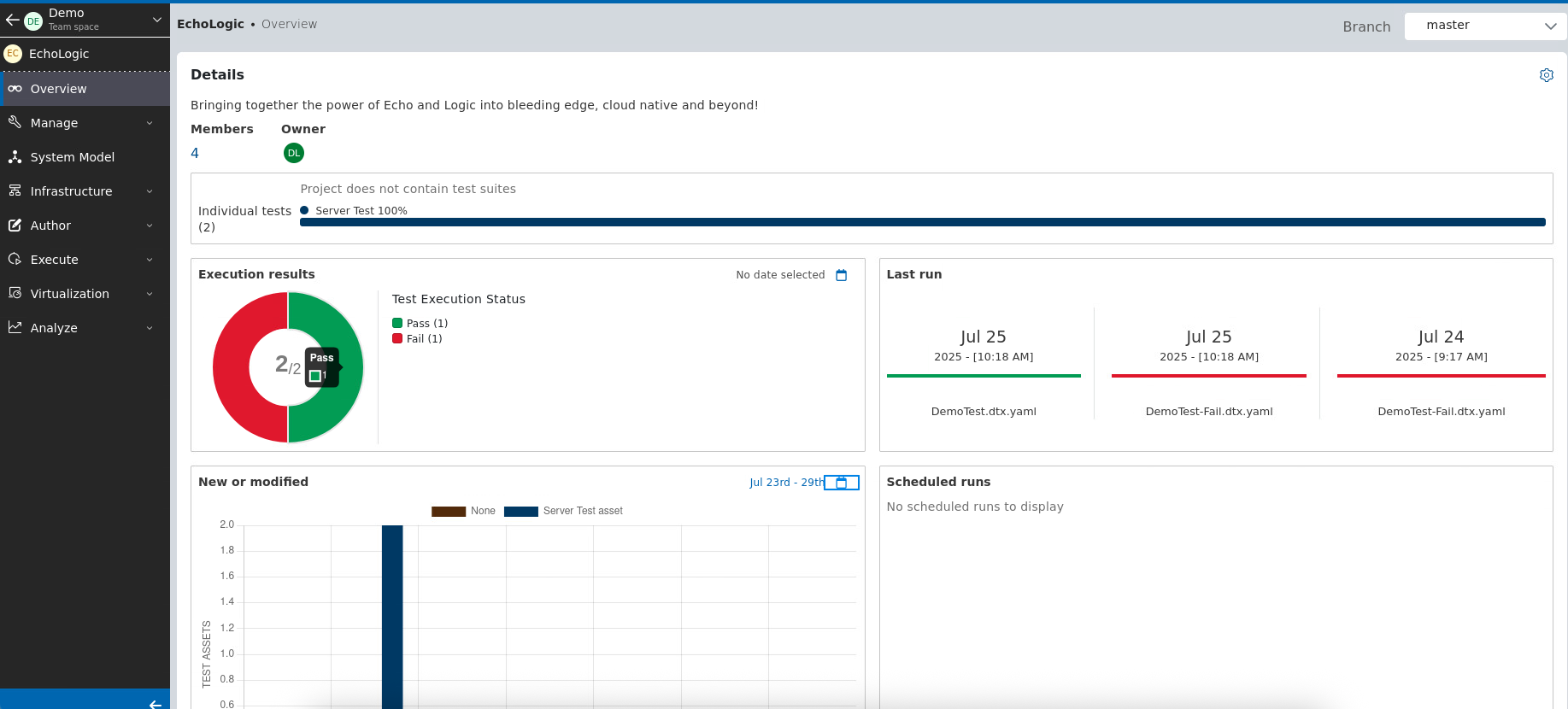 | |
| Run a test | ||
| click on Execute Section in the Sidebar | 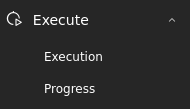 | |
| List of Scripts is shown | 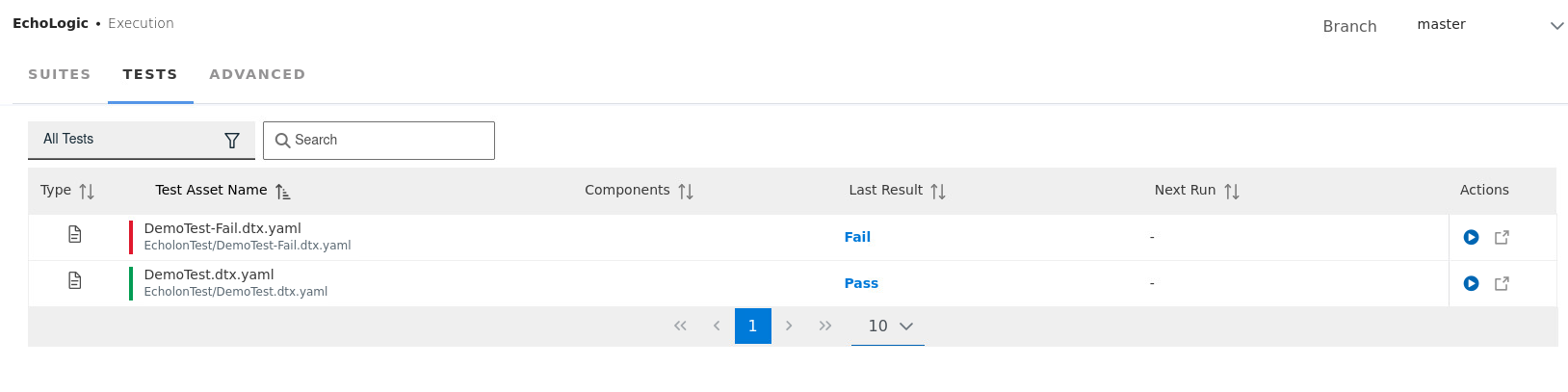 | |
| click on Run Button on the right of Script DemoTest |  | |
| Dialog is opened to select a Browser, use the default settings | 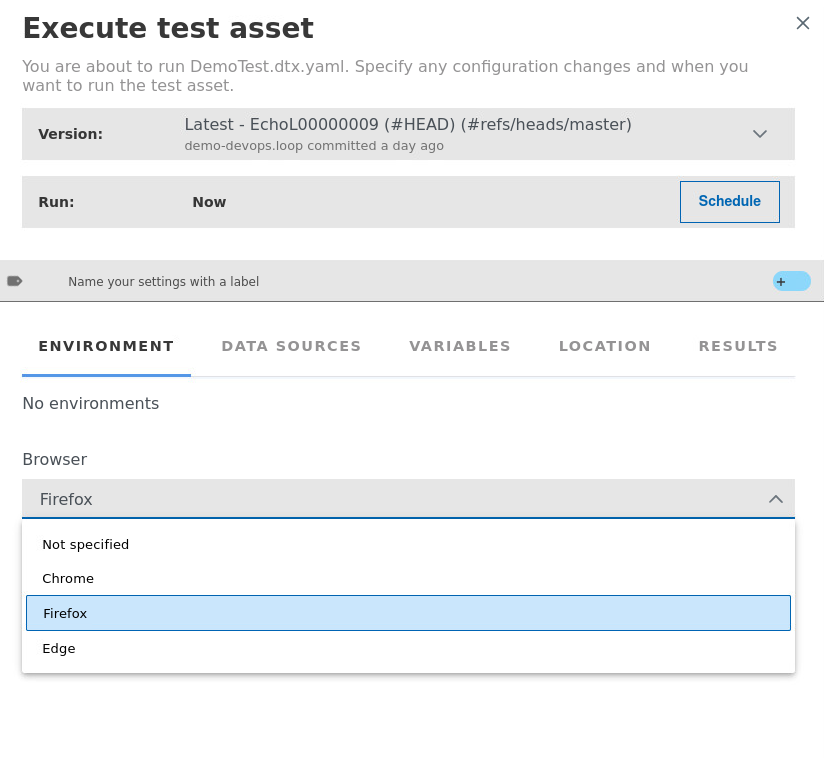 | |
| Click on Execute Button to start Test Execution |  | |
| Run will take a few moments | 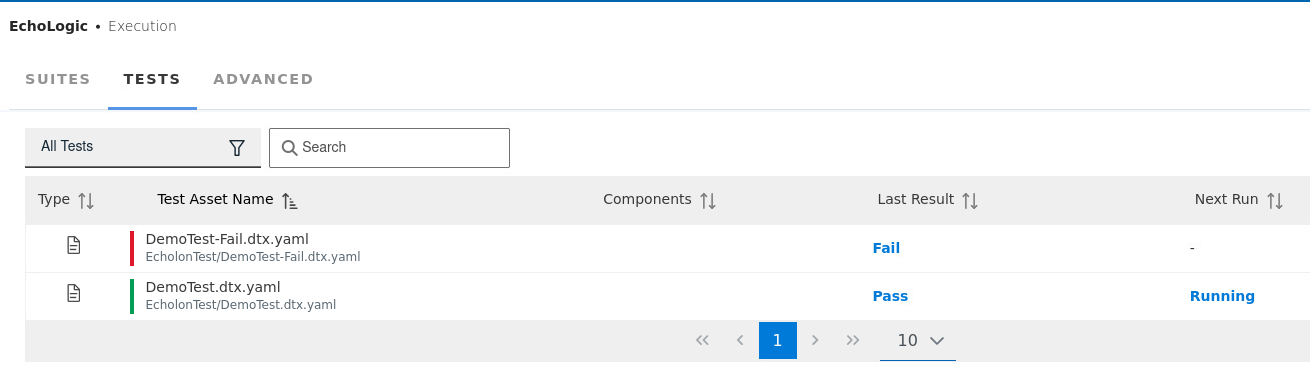 | |
| Show the analysis of the test results | ||
| click on Analyze section in Sidebar to get list of Menu |  | |
| click on Results to get Results View | 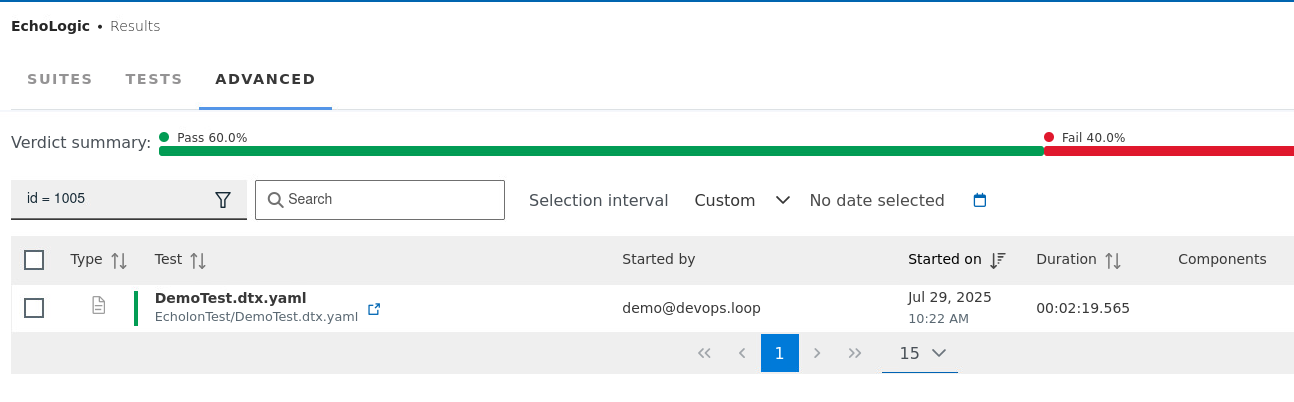 | |
| Show how we can create or edit a test | ||
| click on Author section on Test Editor menu entry | 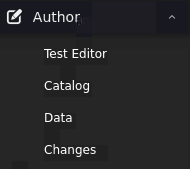 | |
| Test Editor View opens and select the DemoTestFail script | 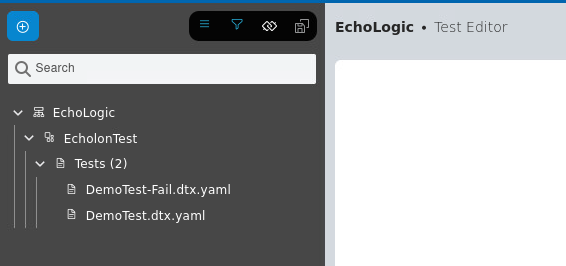 | |
| Test Script will be shown | 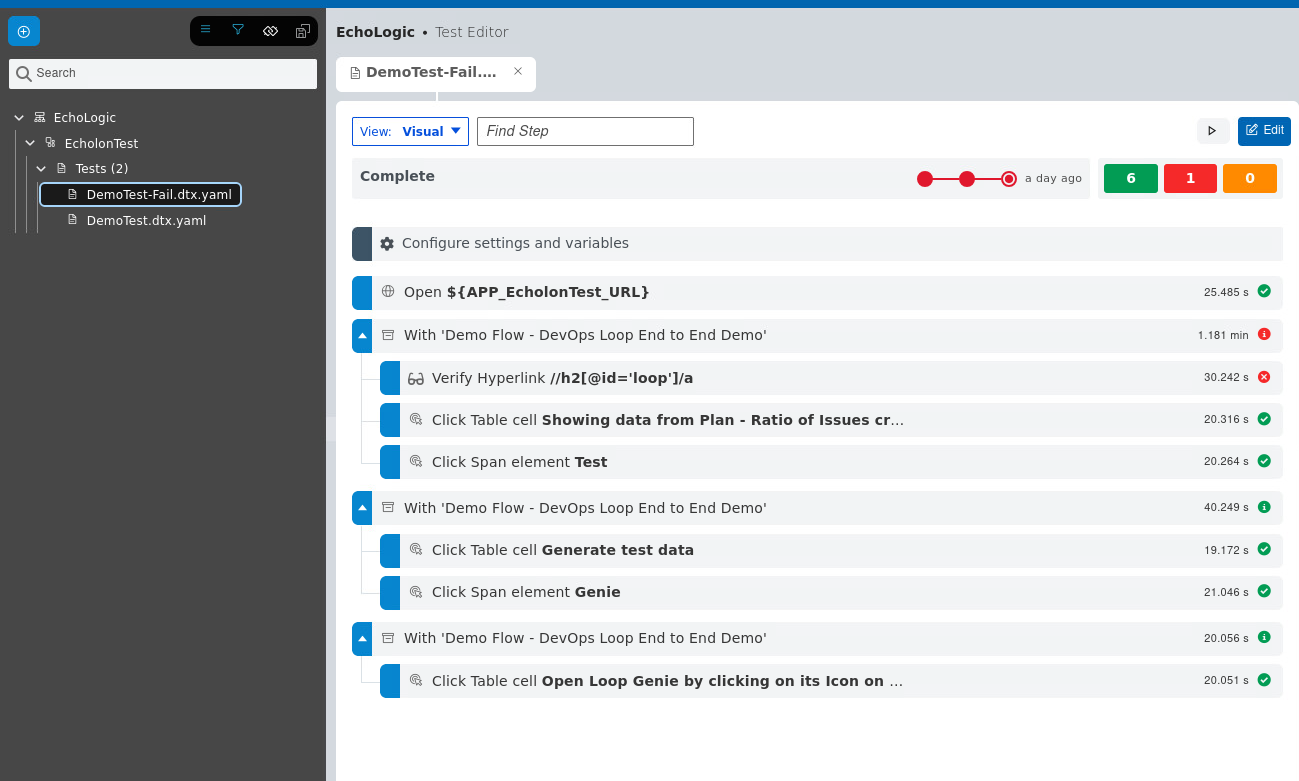 | |
| click on the verification step to view step details | 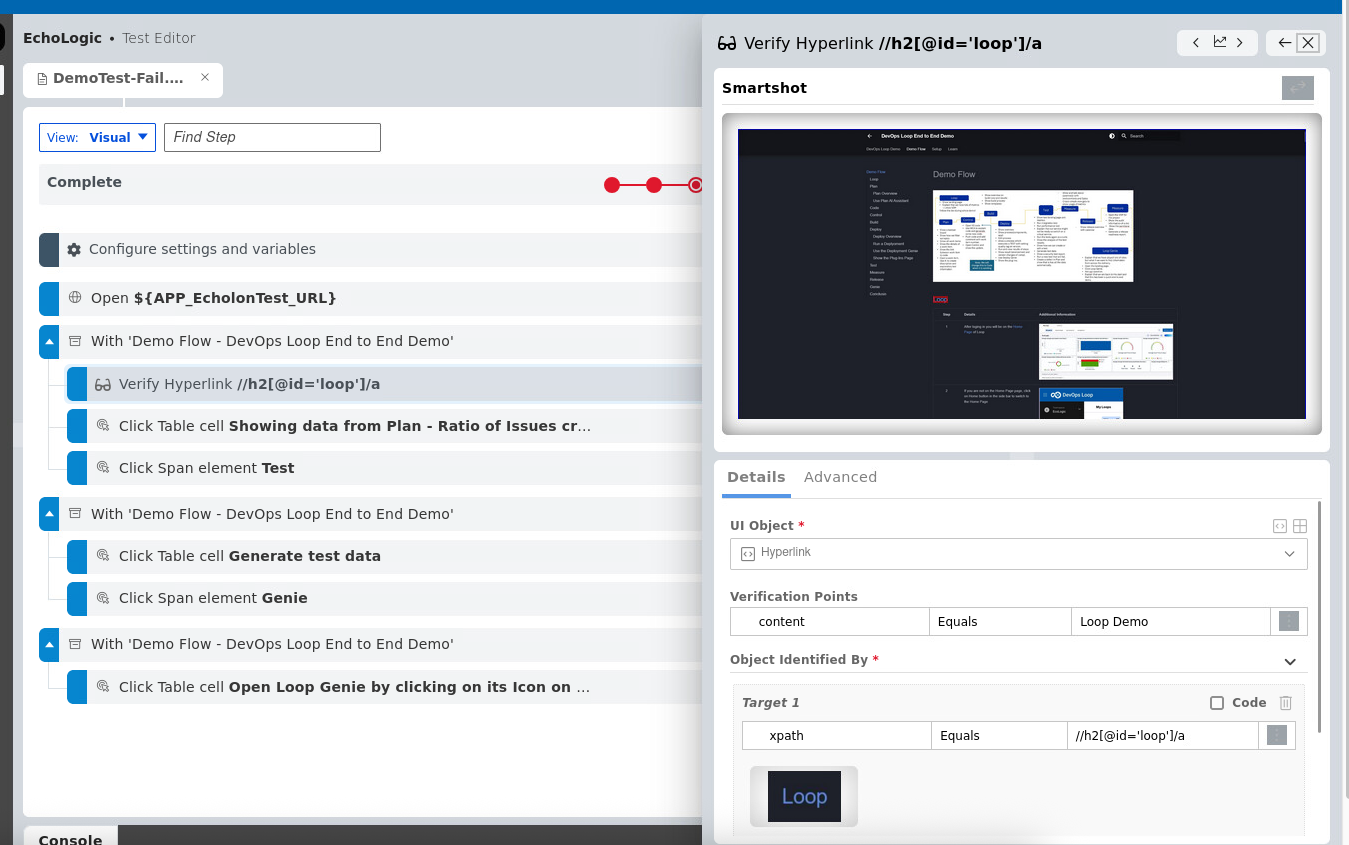 | |
| Run a new test that will fail | ||
| click on Execute Section in the Sidebar | | |
| List of Scripts is shown | | |
| click on Run Button on the right of Script DemoTestFail | | |
| Testexecution will take a few moments. | ||
| Create a defect in Plan and show that is has all the data automatically | ||
| Switch to Results View using the Analyze Section menu | 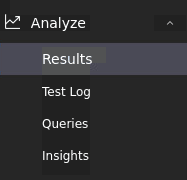 | |
| In the Results View select the DemoTestFail run | | |
Click on DevOps Plan  Icon on the right side of the row Icon on the right side of the row |  | |
| A WorkItem creation Dialog opens, select Workitem in the Type field | 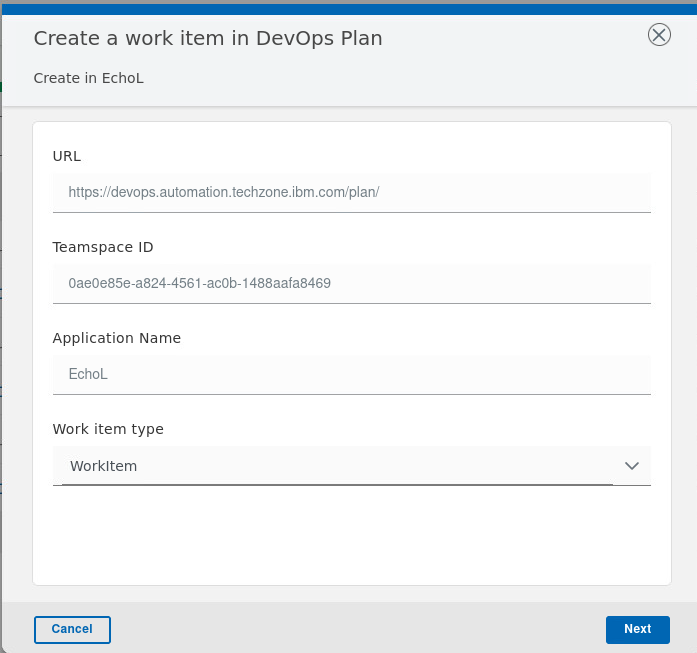 | |
| Select Project "EchoLogic", Workitem Type "Defect" and enter a Title | 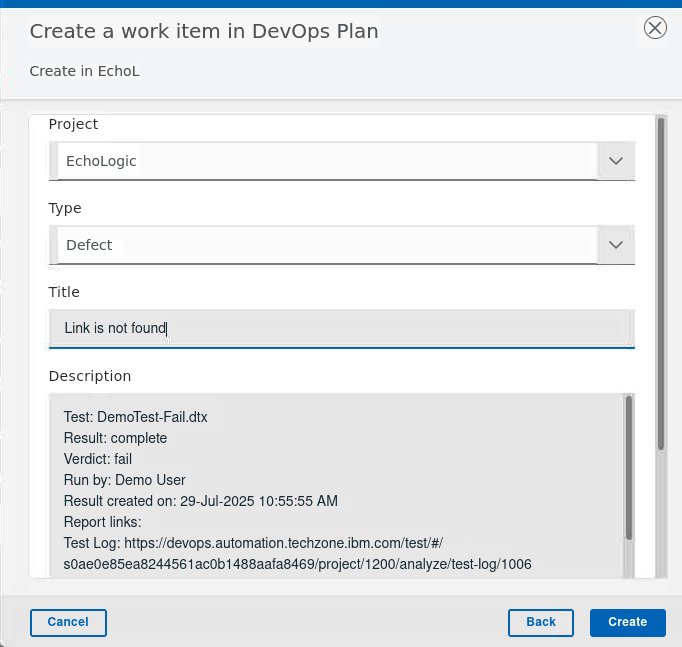 | |
| In the Results View click on the DemoTestFail name to get a Detailed View | 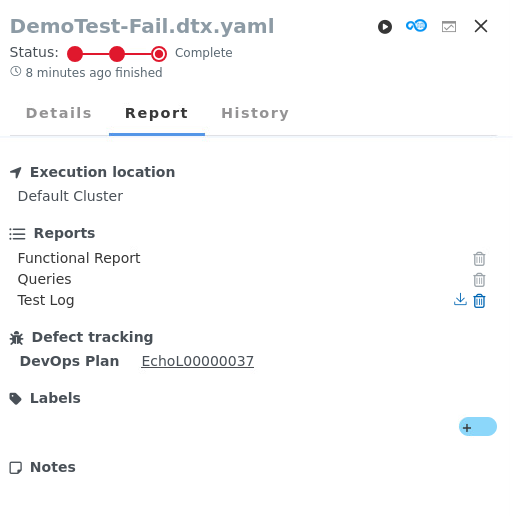 | |
| Explain that everything is traceable |
Testdata
| Step | Details | Additional Information |
|---|---|---|
| Open Author section on Test Editor menue entry and click on Data | | |
| Data Definitions and Schemas are shown | 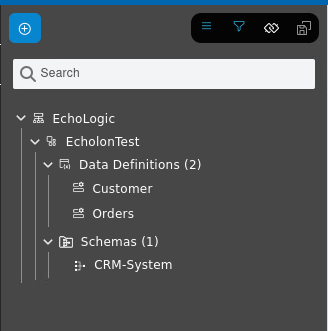 | |
| click on CRM-System in the Schema folder | 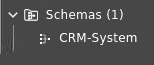 | |
| the CRM-System Data Schema is shown | 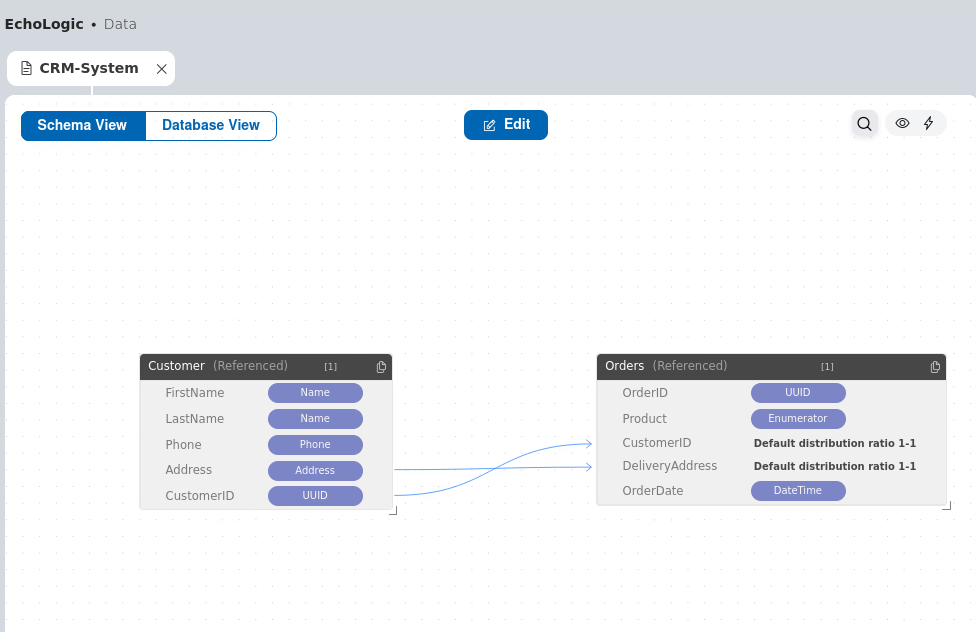 | |
Click on the Preview Icon  | 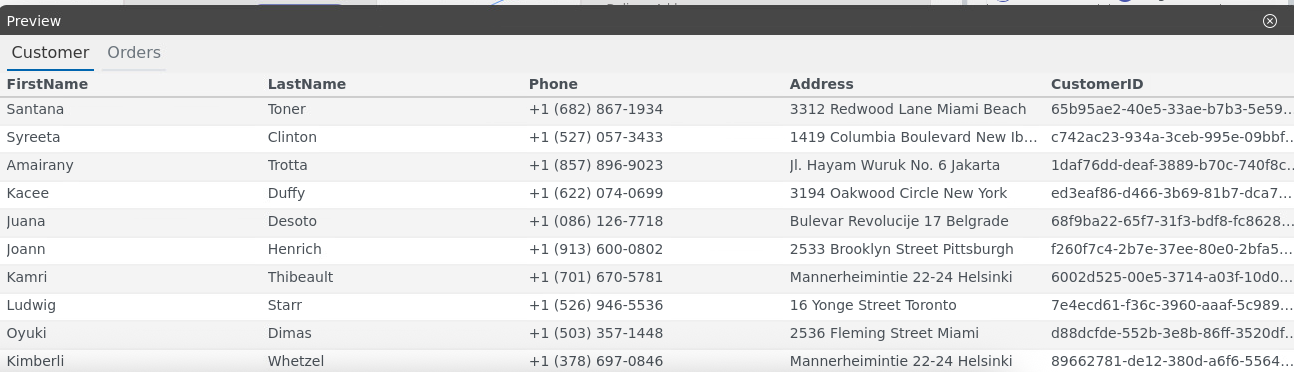 | |
Click on the Generate Icon  | 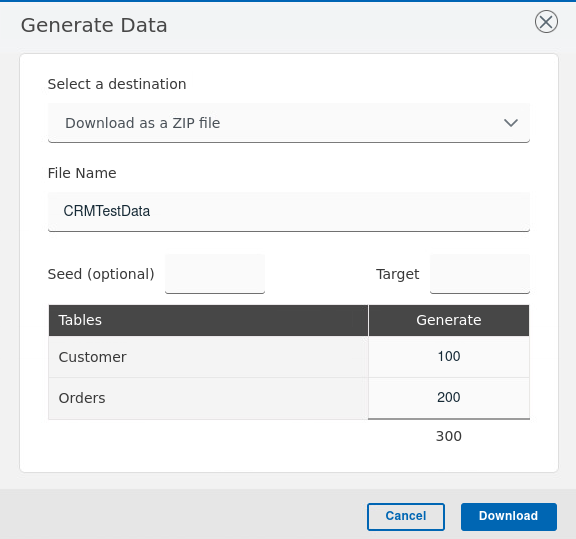 | |
| Download the generated Data by clicking on Downlad Button |  | |
| Unzip and open the create folder |  | |
| Two files are created Customers and Orders | 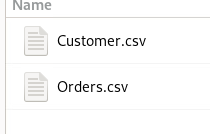 | |
| Open one Orders.csv to view gnerated Data | 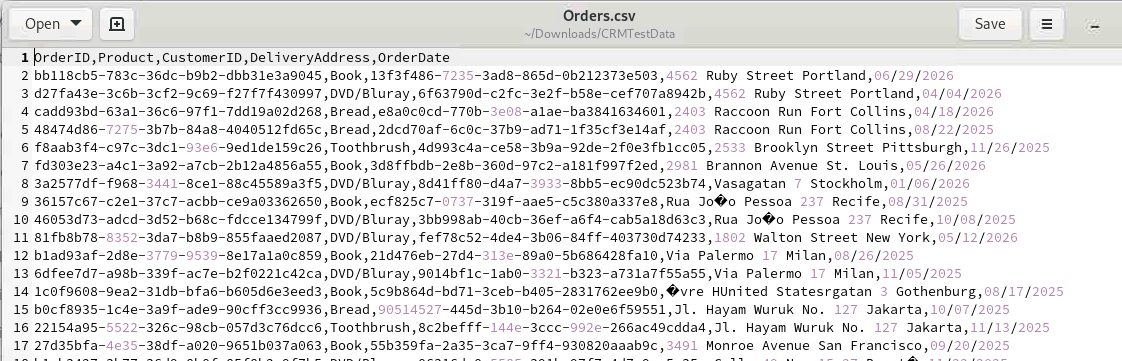 |
Settings
Create Token
| Step | Details | Additional Information |
|---|---|---|
| click on the Profile Link on the top right of your screen to get a menue |  | |
| Click on Create Token in the menue for a new PAT | 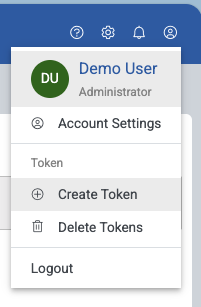 | |
| A new PAT will be created automatically and shown. COPY and PASTE into a secure storage for furter usage | 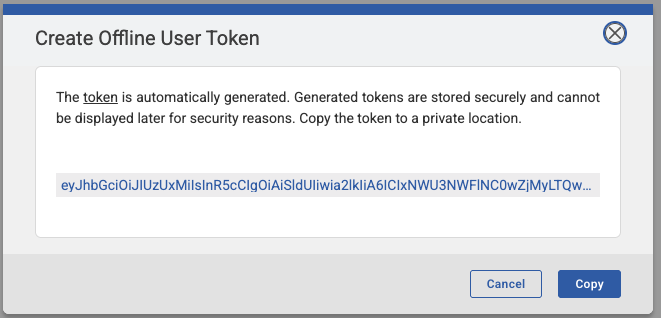 | |
| click on Close to close the dialog |  |
Conclusion
Go back to Introduction, Lab and Demo Overview or proceed with Next Lab